> For the complete documentation index, see [llms.txt](https://docs.arthajobboard.com/llms.txt). Markdown versions of documentation pages are available by appending `.md` to page URLs; this page is available as [Markdown](https://docs.arthajobboard.com/guides/how-to-create-programmatic-job-pages.md).
# How to Create Programmatic Job Pages
### What are Programmatic Job pages?
Programmatic Job pages are ready-made job pages that automatically show the right jobs based on selected keywords or filters.
Each page is created once and always displays relevant job listings—such as jobs by role, location, or job type—making it easy for job seekers to find what they’re looking for and for search engines to discover the page.
### Why is it important?
1. Keyword-Based Landing Pages help you turn common job searches into permanent, shareable job pages.
2. By creating SEO-friendly pages with pre-applied filters, you make it easier for job seekers to land directly on relevant jobs—such as **Remote Sales jobs** or **Accountant jobs in India**—without needing to search or refine filters themselves.
3. These focused pages improve your visibility on search engines, bring in more organic traffic, and increase job views.
4. Most importantly, they let you convert your impressions to clicks by growing traffic and engagement without extra development effort or manual work.
### How to create these pages?
1. Navigate to "Manage Portal" -> "Pages".
2. Click on "Add".
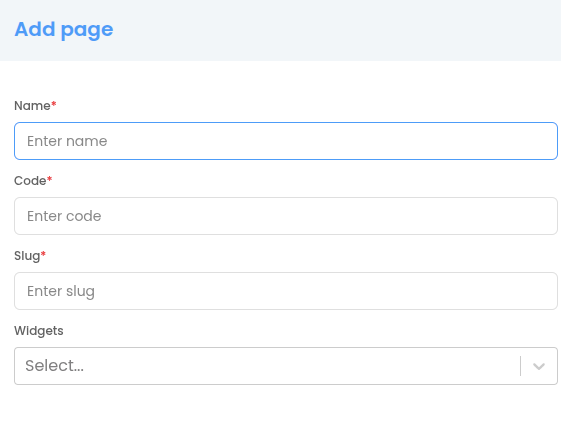
3. Enter page details
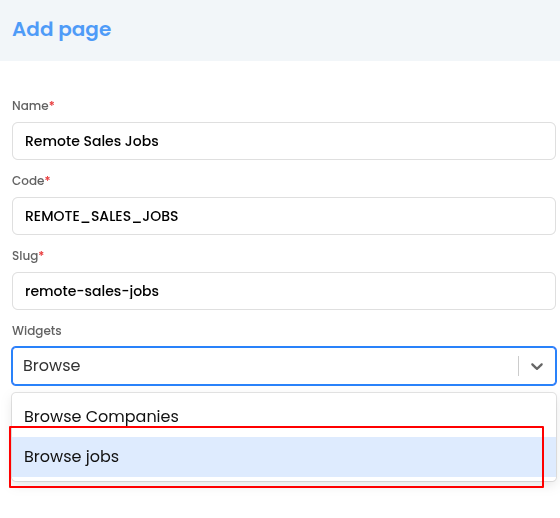
1. **Name**: This field will indicate the name of the page.\
Examples:
1. Remote jobs
2. Remote Sales Jobs
3. Jobs in California, etc.
2. **Code**: This field is the page code in upper-case capital letters only. Each space is replaced by "\_".\
Examples:
1. REMOTE\_JOBS
2. REMOTE\_SALES\_JOBS
3. JOBS\_IN\_CALIFORNIA
3. **Slug**: This field is appended to the base URL of the page. Each space is replaced by "-". It is strictly in lower-case only.\
Examples:
1. remote-jobs
2. remote-sales-jobs
3. jobs-in-california
4. Select the "Browse jobs" widget. The user can use other widgets as well with the "Browse Jobs" widget.
**It is mandatory to choose the "Browse jobs" widget to create these pages.**
5. Click on the filter icon and add the filters for creating the pages. \
\- The number of jobs present on the job board is indicated as soon as the filters are applied.\
\- Click on "Apply Filter".
1. Example 1: Remote Jobs
2. Example 2: Remote Sales Jobs
6. Click on "Create".
{% hint style="info" %}
The user can select a combination of filters to create the pages as per the requirement.
{% endhint %}
### Actions
The following actions can be performed on the pages created.
1. **Edit**: The user can edit the Name of the page and the filters applied and click on "Update".
2. **Delete**: The user can delete the page created if and when required.
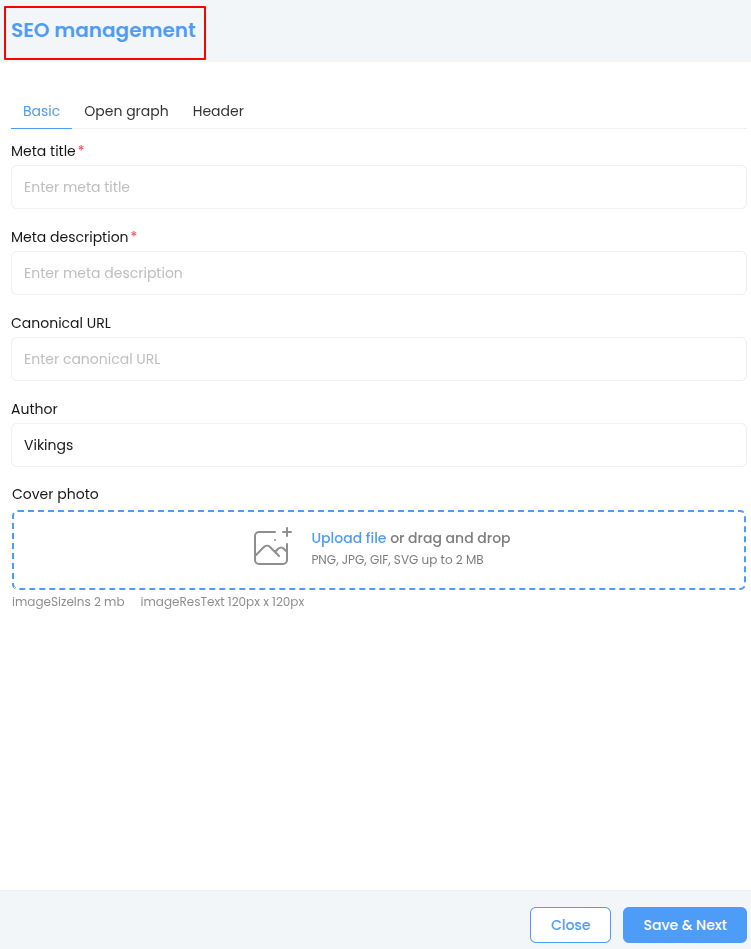
3. **SEO Management**: The user can update the SEO details for optimization.
4. **Redirection**: The user can redirect and view the page created.
1. The user can copy the link and share it on other platforms.
2. The link can also be added in the footer for ready-to-use pages, like: Jobs in Texas, Jobs in California, Jobs in Canada.
### How can this feature be used?
#### You can use Programmatic Job pages to create structured sections like:
* **Jobs by Country** (e.g., Jobs in India, United States, Canada)
* **Jobs by Location** (e.g., Jobs in California, Jobs in New York)
* **Jobs by Job Type** (e.g., Remote jobs, Hybrid jobs, Work From Office jobs)
* **Jobs by Roles** (e.g., Sales jobs, Accounting jobs, etc)
#### Why is this useful?
* Makes it easier for job seekers to browse jobs by common criteria
* Improves SEO by creating crawlable, keyword-focused pages
* Increases job views by guiding users to relevant listings
* Helps organize your job board without any custom development
#### 1. Create a widget and map it to the homepage
1. Navigate to "Manage Portal" -> "Widget" and click on "Add"
2. Enter Name,Code and Title of the widget.
2. Select Widget type -> **Links**
3. Select Item type -> **Pages**
{% hint style="info" %} **You need to have created pages before hand to add them into the widget)**
{% endhint %}
4. Enter the Web per row, Tablet per row
,Mobile per row.
5. Select the **Pages** from the drop down.
6\. Once pages are selected click on **Create.**
7. Once the widget is successfully created, go to Pages -> Homepage
8. Click on edit
9. Select the created widget from the dropdown and click on update
#### 2. Display in your site’s **footer** or other navigation areas.
#### Here are the steps:
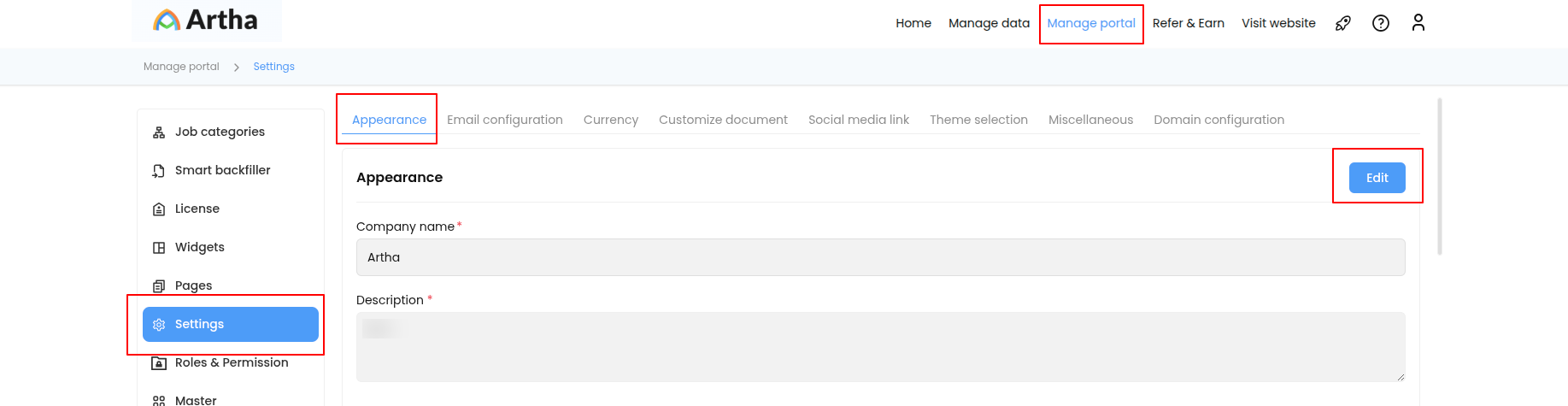
1. Navigate to "Manage Portal" -> "Settings" -> "Appearance" and click on "Edit".\
2. Scroll down to "Footer Management" -> "Footer" and click "+" to add a section.
3. Name: Enter a valid name of the section, like Jobs by Country, Jobs by Location, Jobs by Job type, etc.
4. Under each section, enter the following details:
1. Name: Name of each sub-section, like Jobs in India, Jobs in the United States, Jobs in Canada
2. URL or Page: After choosing either URL or Page, select the page from the dropdown or paste the URL of the Programmatic job page created.
3. Redirection: This field helps you choose whether the page opens in the same tab or new one.
4. Click "+" to add more sub-sections.
5. Click "Save".
---
# Agent Instructions
This documentation is published with GitBook. GitBook is the documentation platform designed so that both humans and AI agents can read, navigate, and reason over technical content effectively. Learn more at gitbook.com.
## Querying This Documentation
If you need additional information that is not directly available in this page, you can query the documentation by asking a question.
Perform an HTTP GET request on the following URL with the `ask` and `goal` query parameters:
```
GET https://docs.arthajobboard.com/guides/how-to-create-programmatic-job-pages.md?ask=&goal=
```
`ask` is the immediate question: it should be specific, self-contained, and written in natural language.
`goal` is what the user is ultimately trying to achieve, the reason they need the answer. Sharing it helps GitBook give you a better, more relevant answer. A goal is most helpful when it describes the outcome the user wants rather than restating the question. For example, with `ask=how do I create an API token`, a goal like `automate deployments from our CI pipeline` lets GitBook tailor the answer to that use case.
The response will contain a direct answer to the question and relevant excerpts and sources from the documentation.
Use this mechanism when the answer is not explicitly present in the current page, you need clarification or additional context, or you want to retrieve related documentation sections.